![VN Logo-1.png]](https://partner.venuenow.com/hs-fs/hubfs/VN%20Logo-1.png?height=25&name=VN%20Logo-1.png)
Venue Editor
The venue editor is where you can edit a number of details about your venue such as the name, address, description, venue type, styles, per-person pricing, keywords, and a 3D tour link.
To access the venue editor. Go to Listings → Edit Venue.
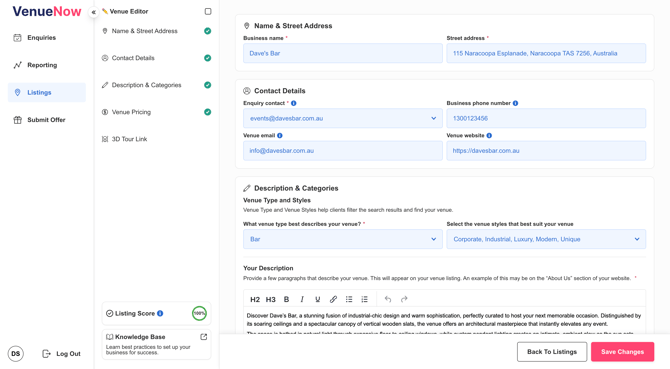
✅ Venue Editor Menu
- The second column shown to the left of the page shows each of the sections that can be edited for your venue listing, as well as some additional options.
- Clicking on the section name such as "Venue Pricing" will scroll the page down to that section.
Checks vs No Checks
- You'll notice that some sections have a check mark such as "Name & Street Address". This indicates that the section has at least one required field that needs to be completed before the venue listing can be saved and published.
- If the section doesn't have a check mark such as "3D Tour Link", that indicates all the fields in that section are optional.
-
Green vs Grey Check
- If there is a green check, that indicates all the required fields for that section have been populated.
- If there is a grey check, that indicates at least one additional required field needs to populated.
Listing Score
- At bottom of the venue editor menu is a "Listing score". Completing each section with a check mark will increase the score until all the required fields have been populated and the score reaches 100%.
📍 Name & Street Address

Business Name (Required)
This is the name of your venue and how it will appear on your Venue listing, space listing, search cards and URLs.
Street Address (Required)
This is the address of your venue. Once a value has been entered in this field, you will need to select an address from the dropdown (powered by Google Maps).
👤 Contact Details

Enquiry Contact (Required)
- The enquiry contact is the user associated with your account that will require all enquiry emails from VenueNow as well as additional emails such as your Monthly status update and performance reports.
- Clicking the enquiry contact dropdown will show a list of users associated with your venue. If you do not see a specific user that you need to update to, go to Company Settings > Team and add that user to your account.
Business Phone Number (Optional)
- In most cases, this will be your generic business phone number, or alternatively it may be the phone number of your events or sales team.
- Entering a phone number in this field makes this information quickly accessible for the VenueNow team if we need to contact your team, and can't directly reach the enquiry contact.
Venue Email (Optional)
- Similar to the "Business Phone Number" this is your generic email address such as info@ or sales@ that the VenueNow team can use to contact your team if we can't directly reach the enquiry contact.
Venue Website (Optional)
- This is the URL for your venue website. Adding this allows the VenueNow team to quickly reference any additional information about your venue.
✏️ Description & Categories
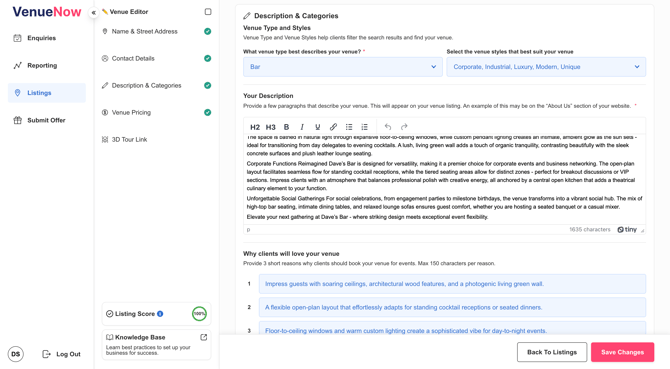
Venue Type (Required)
One venue type can be selected for your venue such as "Pub", "Bar", "Hotel" and so on. The venue type is used to filter search results and is displayed on your listings and search cards.
If you'd describe your venue using multiple venue types - select the venue type that makes the most sense for users trying to discover your venue.
Venue Styles (Optional)
Venue styles are descriptive tags such as "Modern", "Industrial", "Waterfront" and so on. Venue styles are used for search filtering and help clients discover your venue based on what "vibe" of venue they're looking for.
We recommend adding up to 5 venue styles that best describe your venue - and not to add any that don't make sense. Eg. If your venue isn't rustic - don't select rustic as this won't match what the user is looking for.
Description (Required)
The description you add via the venue editor will be displayed on your venue listing. We recommend providing an overview of your venue as a whole (not individual event spaces) and to be as descriptive as possible about your various features and selling points - specifically focusing on why your venue is great for events. An example of this may be what is on the "About us" page on your website.
In addition to being displayed on your venue listing, your venue description is also used for keyword searching and matching you to relevant clients.
As a rough guide, we recommend including around 250-400 words. If you're struggling to hit 250-400 words or need to summarise, you can leverage AI tools such as ChatGPT or Gemini to assist with your description. If you are using AI tools we highly recommend that you carefully read the output to ensure accuracy of information.
Example prompt:
"Create a 250 word description of my venue [Your Venue Name] - focusing on why it is a great option for event organisers to book [corporate/social/wedding] events. The description should focus on the key features, benefits and selling points.
"Create a 250 word description of my venue [Your Venue Name] - focusing on why it is a great option for event organisers to book [corporate/social/wedding] events. The description should focus on the key features, benefits and selling points.
Why clients will love your venue (Optional)
Here you can add 3 short reasons why clients should book your venue for events. These reasons are displayed on your venue listing and provide users with an "at a glance" overview of your venue.
As a guide, each reason should be around 10-15 words and focus on one key selling point.
If you're struggling to come up with three points, you can leverage AI tools such as ChatGPT or Gemini to assist. If you are using AI tools we highly recommend that you carefully read the output to ensure accuracy of information.
Example Prompt:
"Provide 3 short reasons why clients should book [Your Venue Name] for events. Max 15 words.
💲 Venue Pricing
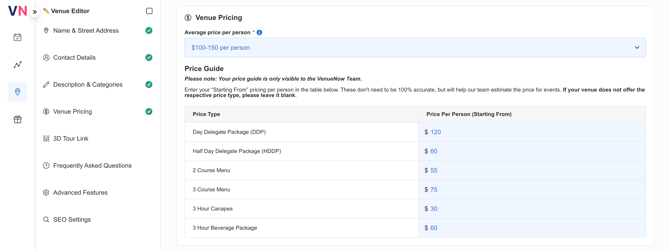
Average Price Per Person (Required)
The average price per person represents the rough cost (across all event types) for an event at your venue. This amount should factor in costs that are typically included with event bookings such as food & beverage.
The primary use of the average price per person is to filter search results when a user is entering a budget so that users don't see venues that are out of their price range.
Dropdown options include:
- Less than $50 per person
- $50-$100 per person
- $100-$150 per person
- $150-$200 per person
- More than $200 per person
Price Guide (Optional)
The primary purpose of the price guide table to help the VenueNow team get a quick overview of your pricing when assisting high-value corporate clients.
Note: Values entered in this table are only visible to the VenueNow team. These are "starting from" prices so they don't need to be 100% accurate and we understand that they may change from time to time. If you typically don't provide quotes for a specific price type listed in the table, leave the value for that price type blank.
Price Types
- Day Delegate Package (DDP)
- Half-Day Delegate Package (HDDP)
- 2 Course Menu
- 3 Course Menu
- 3 Hour Canapes
- 3 Hour Beverage Package
🌐 3D Tour Link (Optional)
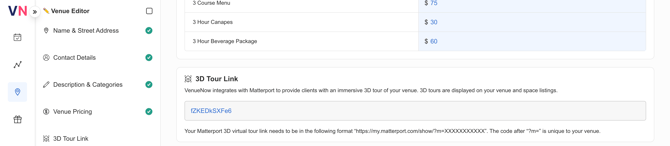
VenueNow integrates with Matterport to provide clients with an immersive 3D tour of your venue. 3D tours are displayed on your venue and space listings.
Your Matterport 3D virtual tour link needs to be in the following format “https://my.matterport.com/show/?m=XXXXXXXXXXX”. The code after “?m=” is unique to your venue.
Notes:
- 3D tours are only displayed on "Standard", "Premium" and "LitePlus" listings.
- We currently don't integrate with any other 3D tour software other than Matterport