![VN Logo-1.png]](https://partner.venuenow.com/hs-fs/hubfs/VN%20Logo-1.png?height=25&name=VN%20Logo-1.png)
Having quality photos on your listing is one of the most important ways to give customers a clear idea of what activities your space could be used for. This will subsequently lead to you receiving higher quality leads and help you with converting sales.
We recommend you add at least 4 high resolution photos of your space in landscape view.
Step 1
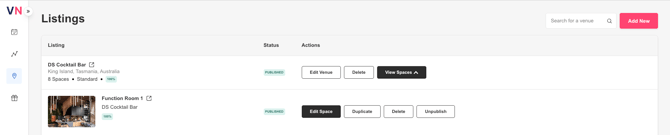
Go to the Spaces page. You should be able to see all your listings in the one place. Navigate to the space that you want to add photos to and click the 'Edit Space' button.
Step 2
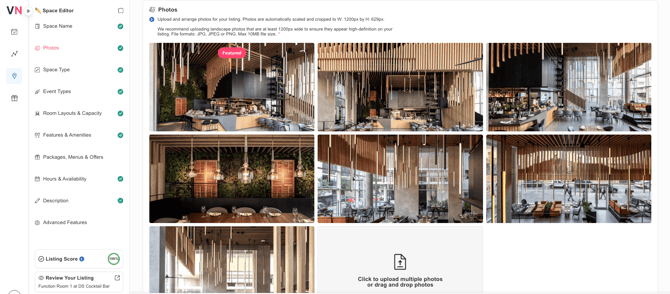
Click on the Photos tab on the left.
Step 3
You’ll see a grey box that says ‘Click to upload multiple photos or drag and drop photos’. Either drag and drop your chosen photos into this box, or click it to browse and select them from your files. Each time you upload a photo, you’ll see a preview of the image you’ve selected.
The first image you upload will automatically be marked with a ‘Featured’ tag. This featured image will appear first on your space listing and act as your main hero image.
Step 4
Click 'Save Change's in the bottom right corner to save your changes.
Upload and arrange photos for your listing. Photos are automatically scaled and cropped to W: 1200px by H: 629px.
We recommend uploading landscape photos that are at least 1200px wide to ensure they appear high-definition on your listing. File formats: JPG, JPEG or PNG. Max 10MB file size.