![VN Logo-1.png]](https://partner.venuenow.com/hs-fs/hubfs/VN%20Logo-1.png?height=25&name=VN%20Logo-1.png)
TL;DR
To edit pricing for a space: go to Listings → click View Spaces for your venue → click Edit Space → open Pricing, Hours & Availability → expand a day of the week → click Add Hours (new timeslot) or Edit (existing timeslot) → set your pricing → repeat for other timeslots → click Save Changes when you're done.
Overview
For each space at your venue, you can set pricing for every timeslot you're available throughout the week. This pricing is used across VenueNow, including search, recommendations, and your listings.
Adding pricing does two things for you:
- Better matching - we can match event organisers to spaces that fit their budget.
- Self-qualification - organisers can check pricing before they contact you, so they only enquire when it's a fit.
Both lead to a higher booking conversion rate, because the enquiries you receive are more qualified.
Adding and editing pricing
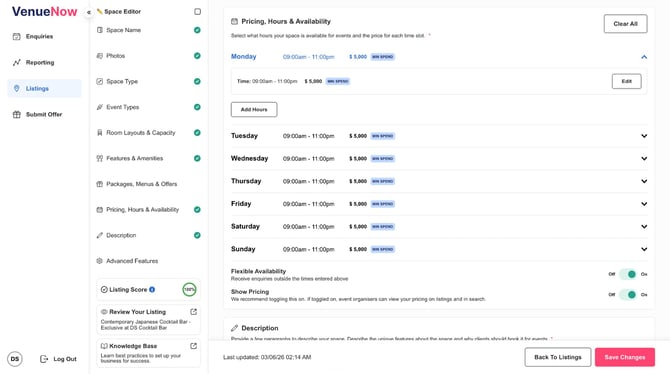
Open the space editor for the space you want to edit (Listings → View Spaces → Edit → Pricing, Hours & Availability), then expand the day you want to set pricing for.
- To add a new timeslot, click Add Hours.
- To change an existing timeslot, click Edit on that timeslot.
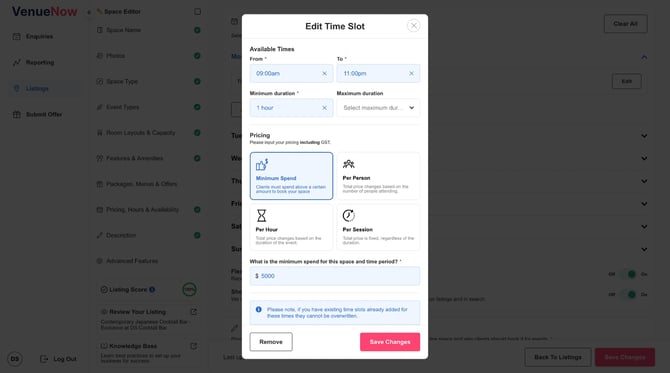
Available times
- Set the From and To times (the start and end of the timeslot).
- Note: timeslots can't overlap with other timeslots on the same day.
- Set a minimum duration for the booking (1 hour minimum).
- Optionally, set a maximum duration. For example, if your bar or restaurant caps bookings at 2 hours, set the maximum duration to 2 hours.
Price types
You can choose one of four price types for each timeslot:
- Minimum Spend (Min Spend) - the minimum amount an organiser must spend to secure the space, usually on food and beverage. Any shortfall is charged as a top-up. You'll be asked: "What is the minimum spend for this space and time period?"
-
Per Person (Per Head) - a fixed price per person, multiplied by the number of guests. E.g. $100 per person × 100 people = $10,000 total. You'll enter the price per person and a minimum number of people.
- Per Hour - a fixed price per hour, multiplied by the length of the event. E.g. $100 per hour × 5 hours = $500 total. You'll enter the price per hour.
- Per Session - a fixed price regardless of how long the event runs. E.g. whether the event is 1 hour or 5 hours, the price is still $1,000. You'll enter the price per session.
Enter pricing including GST
When you enter pricing, make sure the amount includes GST.
Enable online bookings
By default, pricing is set up as an enquiry: the client contacts you, and the transaction happens offline.
For Per Person, Per Hour, and Per Session timeslots, you can also enable online bookings. With online bookings, you receive a booking request you can accept, reject, or reschedule. The client has pre-authorised payment when they send the request, and payment is transferred to you on the day of the event.
Enabling deposit payments
When online bookings are enabled, you can choose to Enable Deposit Payments. A deposit lets you collect part of the total up front, from 10% to 50% of the booking amount.
The deposit is calculated as the booking total (from the pricing table) × the Deposit Percentage you select, plus VenueNow's commission. It's sent to you via your dashboard 7 days after the booking is accepted.
VenueNow doesn't process the final payment (the booking total minus the deposit) - that's settled between you and the client offline.
Show or hide pricing
You can toggle Show Pricing on or off for each space. We recommend leaving it on so organisers can self-qualify.
If you turn it off, organisers won't see pricing on your listings, and your listings will display "Price on request". Your pricing data is still used behind the scenes for search filtering and recommendations, so you'll keep getting matched with qualified organisers.
Where does pricing appear?
- Space cards - search results, landing pages, recommendation experiences, and more.
- Space listings - the "Starting from" price, plus the "Pricing, Hours & Availability" section.