![VN Logo-1.png]](https://partner.venuenow.com/hs-fs/hubfs/VN%20Logo-1.png?height=25&name=VN%20Logo-1.png)
TL;DR
Go to Listings → Edit Venue → Embed YouTube Video → paste your YouTube URL → check the video preview appears → click Save Changes. The video then shows on your venue listing and its associated space pages. You can add one video per venue, and only YouTube is supported for now.
Overview
Adding a video brings your venue to life in a way photos can't - it shows the space, the atmosphere, and the details that help an event organiser picture their event there.
Listings with video typically receive more enquiries. A video helps organisers get a real feel for your venue before they reach out, so the enquiries you receive are warmer and more qualified.
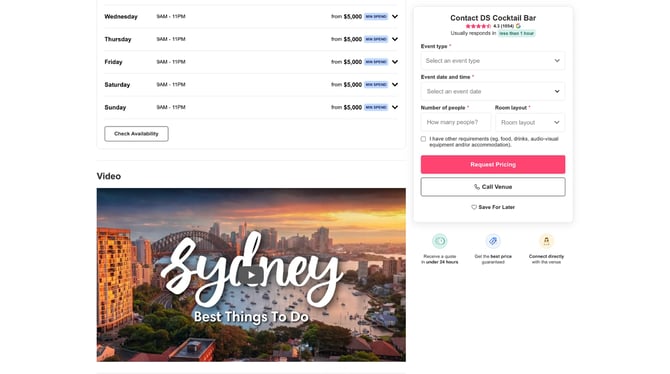
The video appears on your main venue listing and on every space page linked to that venue, giving you maximum exposure from a single upload.
Adding a video
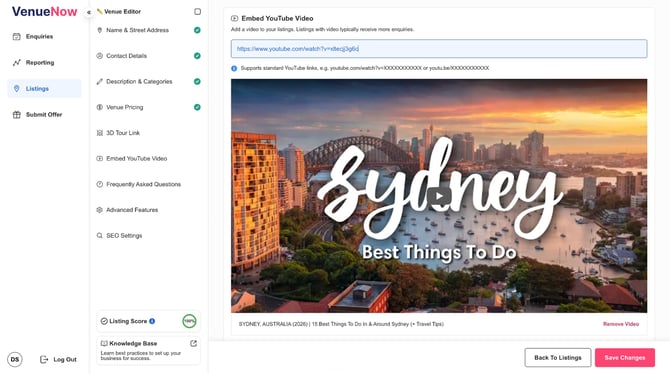
- Go to Listings and click Edit Venue for the venue you want to update.
- Open Embed YouTube Video from the editor menu.
- Paste your YouTube link into the field. Standard YouTube URLs are supported, e.g.
youtube.com/watch?v=XXXXXXXXXXXoryoutu.be/XXXXXXXXXXX. - Check that the video preview appears below the field. This confirms the link is valid and the correct video will display.
- Click Save Changes.
Your video will now appear on your venue listing and its associated space pages.
Good to know
- One video per venue. Each venue supports a single video, shown across the venue listing and its space pages.
- YouTube only. Only YouTube links are supported at this time.
- Check the preview before saving. If no preview appears, double-check the link is a standard YouTube URL and try again.